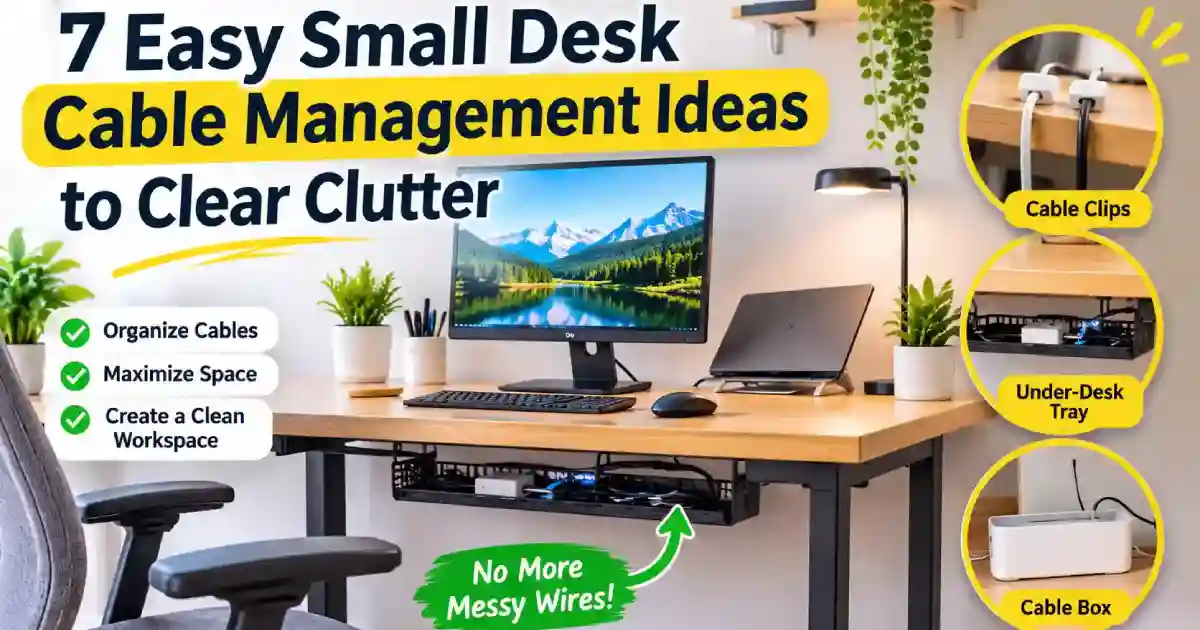
7 Easy Small Desk Cable Management Ideas to Clear Clutter
Small Desk Cable Management Ideas can help you create an organized, tidy and comfortable home office. Having a laptop, monitor, keyboard, phone charger and other peripherals can cause a small desk to become a real tangle of wires. Not only does this look untidy, loose cables can take up a lot of space and cause problems when trying to work.
The great thing about managing your cables is that you don’t need a big desk or expensive tools. Using simple tools such as cable clips, cable trays, reusable cable ties and cable management boxes will help keep your cables tidy while also maximizing space. This guide shows you 7 simple ways to manage your cables on a little desk to help keep things tidy and organized.
1. Remove Any Unnecessary Cables
Before buying cable organisers or attaching an under-desk cable tray, take a few minutes to declutter your desk. If your desk is small it can very quickly get messy if you have too many charging cables, old cords and little-used accessories. Implementing some smart small desk cable management ideas and starting out with a clean desk will help you keep your small desk tidy with cables without having to invest in any cable organisers.
Start by tidying up your desk. Look at all the cables attached to your computer, monitor, phone charger, speakers and accessories. Identify any devices that are used daily, and those cables you can store away. Keep your essential cables easily accessible but remove any cables that aren’t being used. Be sure you know what each cable is powering or connecting before unplugging anything.
Sort Cables by Device
One of the easiest ways to organise your desk is to group your cables. For example you could group all of your monitor and computer cables together. Then have another group for your phone and tablet charging cables. Group your accessories together such as speaker, webcam or headphones.
To help distinguish between cables that look similar to each other use cable labels or re-usable cable ties. If you have a number of black power cables running behind your desk it could be useful to label these. Also you could put your cables that aren’t used often into labelled storage bags or drawers.
If you are using a laptop with an external monitor then you will only need a few of the cables. Maybe just your power cable, monitor cable and some accessories. This can help you declutter your desk by removing any unnecessary cables. When looking for effective small desk cable management ideas, minimizing your setup down to these essential cords is one of the easiest ways to keep your workspace clean.
Measure the Cable Length You Actually Need
Cable length can make a big difference in a compact workspace. Extra-long cables often form loops behind a monitor, hang from the edge of a desk, or collect on the floor. Before replacing a cable, measure the distance between the device and its connection point, allowing enough extra length for comfortable positioning and movement.
If you’re charging your phone next to your laptop, you might not need a long charging cable. If you go for a shorter cable, this could result in less of a messy desktop. Having the right length monitor cable can also help keep the large loops to a minimum.
When choosing your new cables, be sure that they are compatible. Check that your cable has the correct connector, can provide the correct power/data requirements and is suitable for your device. For example, if you have a USB-C charger, laptop and/or monitor ensure that your cable can provide the correct power, data or video requirements. Don’t change your cable if it is just too long. Ensure that you can still route and secure your current cable.
Helpful Product Tip: Choose Shorter Cables Only When Needed
If you still have long cables leftover then we would recommend purchasing a compatible short cable. USB charging cables, suitable monitor cables and appropriately rated extension cables will help reduce clutter.
Not all cables need to be changed. Simply try to make sure you route your cables neatly behind your desk and use cable ties to keep any excess cable neat. This is an easy way to keep your small home office tidy and save some money.
Important tip: Never chop or alter your power cable. Instead replace any damaged cables. Check that your power cables and connections are not damaged and appropriate for use.
2. Use Cable Clips for Small Desk Cable Management
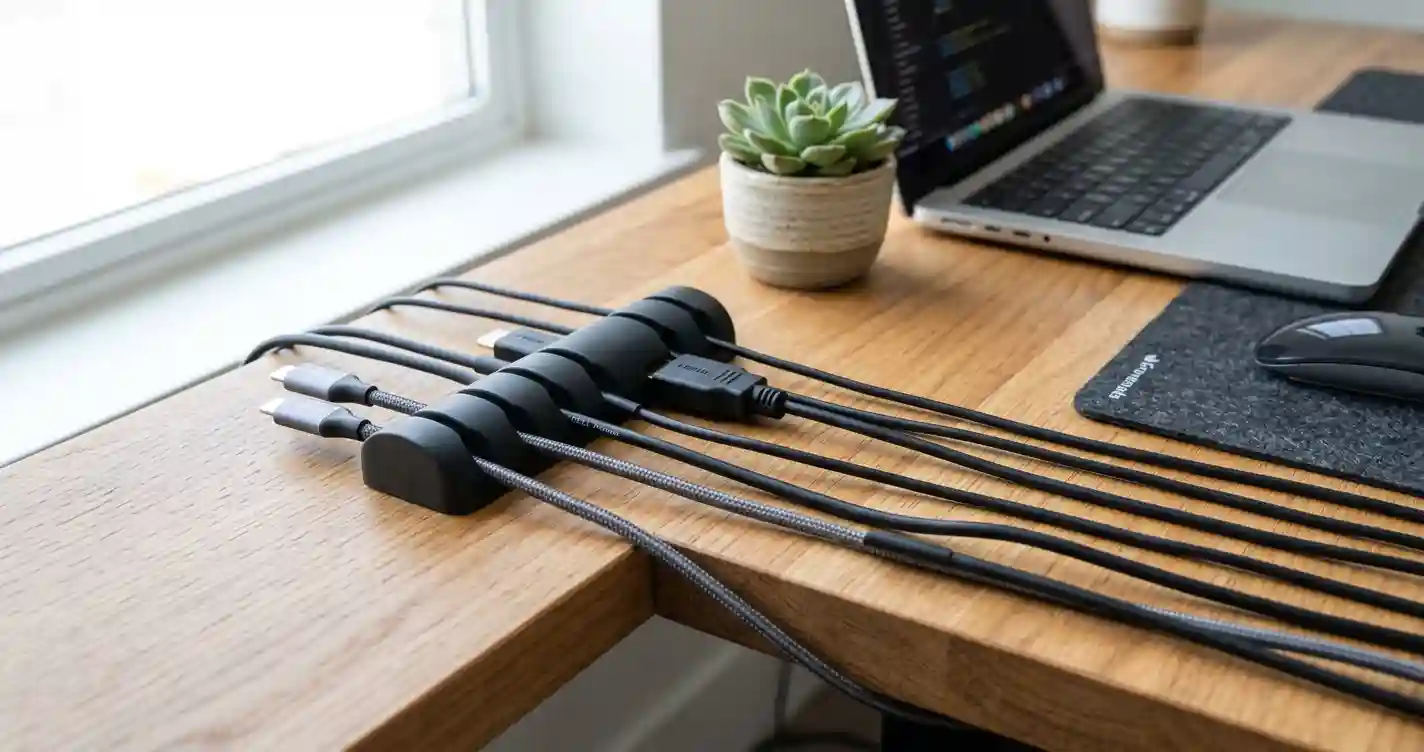
A simple and cheap method of cable management on a smaller desk is using Cable Clips. They can help to keep your cables neat by holding them in place. This is especially useful if your phone charger, Laptop cable or monitor cable keeps sliding behind your desk. By using Cable Clips, you will have a much neater area to work from. If you are searching for practical small desk cable management ideas, this budget-friendly trick is ideal for a small home office.
When using Cable Clips for cable management on a small desk you can clip them to the back or side of your desk. This will help to manage your cables so they run towards your most used devices. This will help to keep your cables out of the way on your workspace. They will be kept neat and tidy in their designated areas.
Choose Adhesive or Clamp-On Cable Clips
Cable clips are available in different styles, so choose one that works with your desk material and setup.
If you have a clean, flat desk surface then adhesive cable clips would be the best choice. Most will have an adhesive backing and keep charging cables or light weight compatible cables in place. They can be placed at the back of your monitor, along the rear part of your desk or around your charging station. Make sure the area you are applying the clip is clean and dry by following the manufacturer’s guideline. If you are worried about the surface you are using, try placing it in a less obvious area. Some adhesives can cause a build up and can cause damage to delicate surfaces when removed.
Clamp-on cable clips attach to the edge of a desk without relying on adhesive. They can be useful if you frequently rearrange your workspace or prefer not to stick anything to your furniture. Check the clip’s maximum desk thickness and make sure it fits securely before use.
Consider what surface your desk is made from, how many cables you need organising and whether you want something permanent or adjustable. Avoid using a clip designed for thin charging cables to hold thick power cables. The cable should be held securely in place without causing any damage to the outer layer.
Keep Charging Cables Within Reach
A well-organized desk should make everyday tasks easier, not just look neat. Place cable clips near the spots where you regularly charge your phone, connect your laptop, or plug in accessories. This keeps frequently used cables within reach and prevents them from sliding behind the desk whenever you disconnect a device.
For example, you can attach a small adhesive clip near the front corner of your desk to hold a phone charging cable. Another clip along the back edge can guide your laptop or monitor cable toward the power source. If you use several charging cables, choose a multi-slot holder that can keep them separated and easy to identify.
Try to route cables along the desk’s back edge instead of across your keyboard and mouse area. Leave enough slack for normal device movement, and avoid placing clips where your arms, chair, or other equipment might catch the wires. For a standing desk, make sure cables can move safely when the desk changes height.
Helpful Product Tip: Adhesive Cable Clips and Reusable Holders
These are great products to use if you are looking to organise your workspace on a budget.
- Adhesive cable clips will help guide those light weight charging and accessories cables along the edge of your desk.
- Cable holders with multiple slots will help separate multiple most used cables.
- Reusable cable holders are a great option if you often need to change your desk layout or move cables between devices.
Make sure to look at the size of the hole on the clips. What kind of adhesive they have. Are they suitable for your desk? And read some customer reviews. Pick a product that will work with the cables you will be using.
Quick tip: Start with two or three strategically placed clips and add more only if necessary. A few well-positioned holders can make a noticeable difference without adding unnecessary accessories to your small workspace.
3. Install an Under-Desk Cable Tray
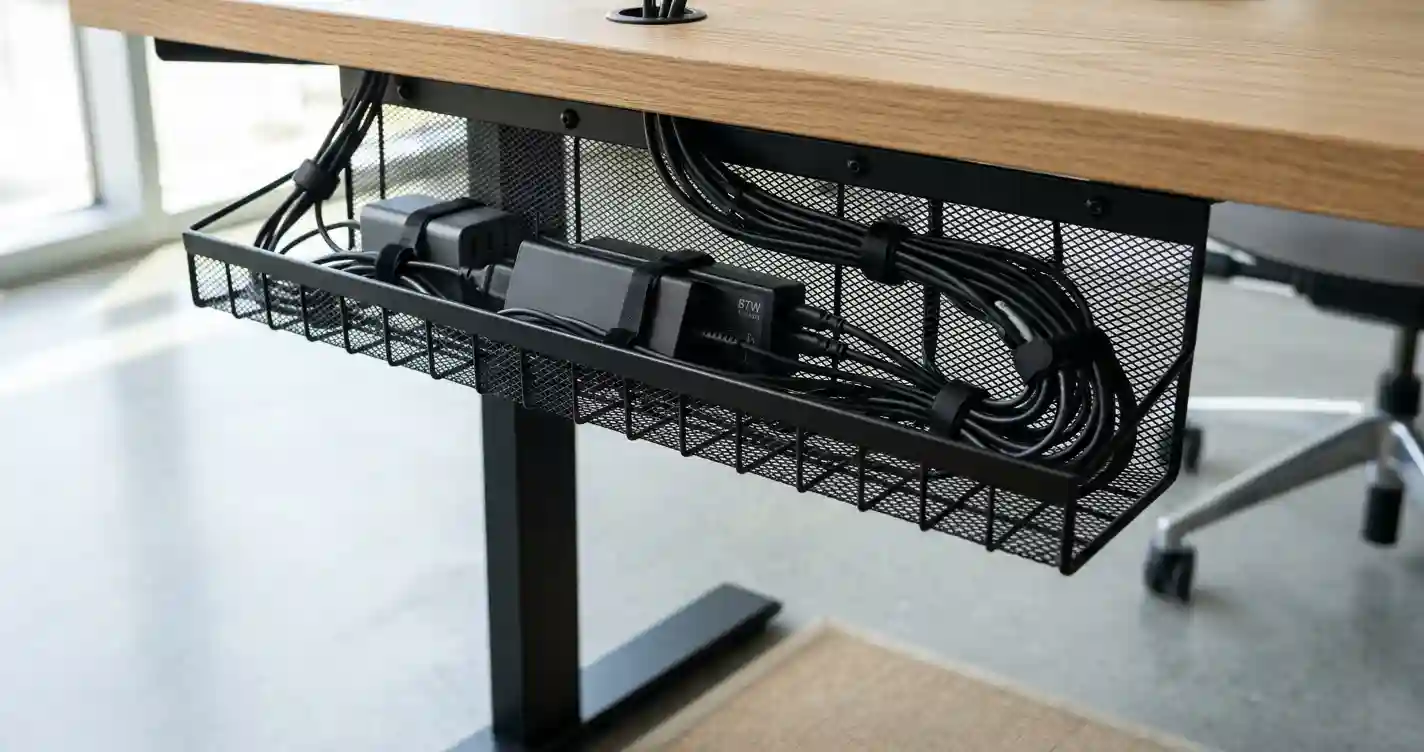
One of the best small desk cable management ideas is to use an under desk cable tray. Rather than having cables hanging off the back of the desk this will help hide all your power cords, monitor and charging cables. It allows for a neater setup and also means there is less clutter in the visible area of your desk.
There are many different types and sizes to choose from. You can go for metal mesh baskets, wire trays or even zero drill solutions so you don’t have to worry about drilling holes. Some include areas for a power strip and longer cables, but some are just for guiding loose cables. Depending on how big your desk is, how many cables you have to manage and if you want to avoid drilling into your furniture will determine which option is best for you.
Measure Your Desk Before Buying an Under-Desk Cable Tray
Before purchasing an under-desk cable tray, make sure to measure the space available. An oversized tray can cause problems with the desk legs, drawers or bars. An undersized tray could leave you with insufficient space if you have a monitor, laptop, docking station and plenty of accessories.
Firstly measure the amount of space you will have. This includes how much width and depth there is. Measure the distance between the desk top and any drawers or cross bars and take note of where the desk legs are. If you have a small desk, ensure you have a tray that can fit into the space you have without causing issues with your knees or chair.
Then consider what you wish to put in the tray. If your set up is small, with a laptop charger and monitor cable, then you may only require a narrow tray. However, if you need to organise a matching power strip, multiple adapters and extra cable, look for a larger or deeper tray. Check the manufacturers specifications for their measurements and weight limit.
For a small home office, it is usually better to choose a tray that fits your actual cable needs rather than the largest option available. Leave enough room for ventilation around power equipment and make sure cables can be accessed when necessary.
Screw-On vs. Clamp-On Cable Trays
When looking at small cable management solutions, choosing the correct mounting type for your cable tray is important. Most under desk cable trays are either screw on or clamp on.
Screw on cable trays will screw directly onto the bottom of your desk. If fitted correctly as per the manufacturer’s instructions, you’ll have a secure and stable solution. The mesh trays are great for cable management as they allow you to route your cables through the basket. However, if you’re renting your home, have a glass desk top or don’t want to cause any permanent damage to your desk, drilling holes into your desk might not be suitable. Please ensure your desk surface and thickness will allow for this type of fit.
Clamp on cable trays allow you to simply clamp your tray onto your desk edges. They generally won’t require you to drill any holes. This can be a great option if you’re renting your home or want a removable solution. Please ensure you check the maximum thickness of your desk, how much space the clamps will take up and that it will fit around the frame/supports of your desk. Ensure you tighten the clamps as instructed and do not go over the weight limit.
If you want a no drilling solution then look for a tray that is specifically for clamping. Some trays use a sticky back or other attachment method, however they depend on the material, surface and design of your desk.
Helpful Product Tip: Mesh Trays and No-Drill Cable Trays
If you need some cable management underneath your desks then consider:
- Metal mesh cable trays are great for keeping your multiple cables and compatible power strips neat and tidy. They allow for ease of wiring and can be easily seen.
- Cable clamps may also be useful if you do not want to drill holes in your desk. Check the thickness of your desk and cable clamp sizes.
- Compact under-desk trays: Suitable for small desks with limited clearance and only a few cables to manage.
- Wider cable trays: Worth considering if your setup includes several adapters, a docking station, and multiple device cables.
Check the size of cable tray, how it will be attached to your desk, weight capacity of tray and ensure it is suitable for your desk. If you are looking to put a power strip inside then ensure there is sufficient airflow and easy access. Don’t overfill the tray and don’t seal your electrical kit too tightly.
4. Bundle Wires with Reusable Cable Ties or Sleeves
Tying up your loose wires is one of the easiest ways to declutter your space. If your monitor, laptop charger, keyboard and other accessories have multiple separate wires going in different directions, group them together. This will cut down on unnecessary clutter and give you a neater area to work from. When exploring budget-friendly small desk cable management ideas, using cable ties and cable sleeves is a cheap and effective way to bundle your wires together.
If you have just a few cables to tie up at the back of your desk or underneath it, using cable ties is a good idea. However, if you have multiple cables running in the same direction then cable sleeves would be better. Both of these can help prevent your cables getting in the way of your feet and chair wheels which is especially useful in a small home office.
When to Use Hook-and-Loop Cable Ties
Hook and loop cable ties are a great option for cables that might need adjusting. As they can be opened and re-closed they’re ideal if you need to add a new device, cable or change the layout of your desk. They’re a great option for more flexible home office setups.
Look for any cables that run along the same path. For example your monitor cable, USB cable and laptop charger. Only group cables that are safe to do so and use a re-closable cable tie to loosely bundle them together. Ensure the ties are spaced out appropriately.
On a small desk you can use these cable ties to neaten up the cables behind your monitor, help route cables to an under desk tray or to help bundle up any extra cable under the desktop. Ensure the cable tie is the right size to fit around your cables. Don’t pull the cable tie too tight as you don’t want to cause any kinking, pinching or damage to the cable insulation.
Ensure any power cables and low voltage data cables are organised in a way that follows the manufacturers guidelines. Don’t over tighten cables together as this could cause overheating. Don’t tie any cables to moving parts of your desk. If you have a standing desk ensure there is enough slack in the cables to allow full movement of your desk.
When a Cable Sleeve Makes More Sense
Use a cable sleeve if you need to bundle multiple cables together. Rather than trying to manage them all individually, put all the compatible cables into the sleeve. They are great for home offices where you have a monitor, laptop docking station, keyboard, mouse and more attached to devices either mounted on or underneath the desk.
Expandable sleeves are great as they can be stretched to accommodate varying sized bundles of cables. There are some that open up on the side of the sleeve whilst some you need to push the cables through an opening. Choose a design that will make it easy to add/remove cables if you often change the cables.
First place your cables in the order you want them to go before putting them into the sleeve. Ensure that none of them are under tension and all reach the device they are attached too. Then pop your compatible cables into the sleeve as per the instructions. Once you have done this, run your new cable bundle along the back of the desk or towards your cable tray.
Before buying a sleeve, check its diameter, length, material, and compatibility with the cables you plan to cover. Avoid enclosing power adapters or power strips unless the product is specifically designed and rated for that use. Keep electrical connections accessible and allow adequate ventilation around equipment that generates heat.
Helpful Product Tip: Reusable Cable Ties and Expandable Cable Sleeves
When choosing cable management accessories for a compact workspace, consider the following options:
- Use some hook and loop cable ties. These are perfect for bundling a few cables together and will allow you to adjust them easy.
- Reusable cable straps are handy to keep your cables tidy under the desk or around your cable tray.
- Stretchy cable sleeves are great to cover multiple cables which go along the same path behind your monitor or desk.
- Split cable sleeves can also be handy to easily plug in or take out a single cable.
Before purchasing look at the size, how they fasten and look at reviews. If you have a simple laptop set up a small pack of reusable cable ties will be fine but if you have multiple devices on your workstation a longer stretchy cable sleeve would be useful.
Quick tip: Use cable ties to organize the wires first, then add a sleeve if you still want a cleaner appearance. This two-step approach can make small desk cable management easier while keeping your cables accessible for maintenance and future upgrades.
5. Hide Loose Wires with a Cable Management Box
This really gives your small home office an instant professional touch. It allows you to neatly store all your various cables and plugs. Instead of having lots of adapters around your desk, you can have a specific area for all your compatible electrical accessories. If you have a few plugs in one area, adopting these kinds of small desk cable management ideas will help to keep your desk neat.
For example if you have a laptop charger, phone charger, monitor cable, and other accessories all connected in one area near your power strip. You can have a cable box that has been designed to fit your needs. This will help to reduce some of the mess. You won’t be hiding all your cables but rather just tidying up your workspace.
Choose a Cable Box That Fits Your Charging Setup
If you often plug in devices such as your phone, earbuds and tablet then a box with easy access to certain ports may be more suitable to your working environment. Alternatively if your power strip is plugged into rarely moved devices a box with a more enclosed design could be better for you.
Look out for boxes with easy access features. These could include a flap or latch lid to easily view your connections and side ports to help route your cables towards your devices. Some have high feet or a steady base.
Check Cable Ports And Ventilation
Cable management boxes will differ depending on their usage. Some have been designed for charging cables and some work well with compatible power strips. To ensure you are using your box correctly, check the manufacturers instructions to see what it can safely be used for.
Ensure there are large enough ports for the cables you need to use. Avoid forcing your plug into tight ports. You want your cables to be able to easily go in and out without causing any kinks, and pressure on the connections. If you are using large adapters, ensure they still fit inside.
Ensure there is good ventilation for any electrical devices you are putting inside. Follow the guidance given by the manufacturer, and keep your ventilation clear. Avoid using devices that aren’t approved for use inside the box. Don’t overload your power strip or put extra items in the box that aren’t relevant.
Helpful Product Tip: Look for Practical Features, Not Just Appearance
- Removable or hinged lid: Makes it easier to inspect plugs and access connections when needed.
- Well-positioned cable openings: Helps wires exit toward the correct devices without unnecessary bending.
- Stable construction: Reduces the chance of the box tipping over when cables are moved.
- Suitable internal space: Accommodates the intended equipment without squeezing plugs together.
- Easy-to-clean design: Helps you remove dust from the area around your charging station.
Whilst you are looking at different options you may want to consider how the cable box will be used on a day to day basis. A lid can make it easier to view the plugs. Good cable ports can provide a good exit for the cables. A solid build will help prevent the box falling over if you need to move cables. Adequate space to house your required equipment. Easy to clean.
Look at the different options available and see what would work best for your workspace. Check recent reviews to get an idea of how well fitting the lid is, how large the cable port is, how durable and how much usable space there is.
Important Tip: Think of the cable management box as a way of hiding and tidying up a suitable charging set up. It should not be used instead of a correctly rated power strip and safe electrical connections. You should still have easy access to the plugs.
6. Route Cables Along the Back of Your Desk for Better Small Desk Cable Management
Routing wires along the back edge of your desk is one of the simplest Small Desk Cable Management Ideas for keeping your workspace neat without adding bulky accessories. When cables run across the desktop or hang loosely from the sides, they can make even a well-organized home office look cluttered. A planned cable route keeps wires closer to the desk structure and away from the areas where you work.
Use a Cable Raceway for Wall Runs
Cable raceways are shallow troughs that help run cables along walls, edges of desks and other surfaces. They can be very useful if your desk is not near any outlets on the wall and you need to run your cables along the wall. Depending on the style you can glue or screw them in place.
Measure how far your desk is from where you will be connecting. Make sure there is enough room in the trough for your cables. If you have a lot of thick cables you may need a wide raceway.
If you are renting or don’t want to drill in your walls then you might want to go for an adhesive raceway. Just check with the manufacturer about what surfaces they can be applied to and how heavy they can be. You may find that they don’t work well on rough, dusty or wet surfaces. Some painted surfaces can also be affected when trying to remove them. If you are using screws or other fittings to put in your raceway ensure you are using the correct fixings for the type of wall you have and know where any secret wiring or plumbing might be.
Ensure that your cables run to where they need to go with minimal sharp bends. Ensure that electrical connections are easily accessible. Only use raceways that are appropriate for the type of cabling you are using. Don’t put power cables in raceways that aren’t appropriate.
Keep Cords Away from Feet and Chair Wheels
A well-managed small desk will keep cords away from your feet and chair mechanisms. Leaving cords on the floor can cause tripping hazards, cause them to snag on chair wheels and cause damage from constant pulling and twisting. This can be a major safety issue with desks located in corners or small apartments. Incorporating smart small desk cable management ideas not only clears the visual clutter but also protects your equipment and prevents accidents.
If using an adjustable standing desk then be careful of how you route your cords from the desktop to the power socket. Ensure there is enough slack in the cords to allow the desk to move to the full height. Ensure your cords aren’t catching on the frame and coming out of sockets. Follow the manufacturers guidelines on routing cords.
Helpful Product Tip: Cable Raceways and Desk-Edge Organizers
To help your cables travel from your desk to your wall socket there are several options available.
- Adhesive cable raceways: Useful for guiding compatible cables along suitable wall surfaces without drilling, subject to the manufacturer’s instructions.
- Screw-mounted raceways: An option for more permanent installations where the mounting surface and cable type are suitable.
- Desk-edge cable organizers: Help guide individual cords along the rear edge of your desk and keep them away from your working area.
- Floor cable covers: Can protect and route cables that must cross a walking area when you select a product designed for that location and use it according to its instructions.
Before buying your raceway check the internal size, how it will attach, what surfaces can be used and what cables it is suitable for. To save space in your small home office pick the smallest option possible.
7. Set Up Safe Cable Management for a Standing Desk
An adjustable desk creates a unique challenge because its cables must move safely whenever the desktop changes height. Without proper planning, wires can become stretched, disconnected, trapped in the frame, or pulled against the wall outlet. These Small Desk Cable Management Ideas can help you keep a standing desk organized while allowing it to move smoothly between sitting and standing positions.
Because you have a standing desk you will need to make sure your cables are able to flex to move between your desk and any static equipment, such as your wall socket or floor outlet. This means your set up has to allow the desk to fully move without any loose wires causing issues when you move. It is always best to figure out what cables need to move with your desk and what ones are static before adding any accessories.
Leave Enough Slack for Standing Desk Height Adjustment
One of the main things you will need to consider as part of your standing desk cable management is making sure that there is enough slack in your cables to allow your desktop to raise to its maximum height. The cables may have been nice and tidy at their lowered height but become too tight when raised.
Set your desk to the correct height for your comfort and determine what route your cables will need to take. Leave enough slack in the cables to allow for the desktop to move freely between the raised and lowered positions.
Cable spines can help you to manage your cables. These accessories usually consist of a series of linked pieces that flex as your desk moves. They can be attached to your desks frame or sat on the floor depending on the design of your cable spine.
Make sure the cable spine is the correct size for your desk height, frame and cable bundle. Ensure that the spine is long enough and fits to your desk correctly. It should allow your cables to move freely without causing any harsh bends.
Test the Full Range of Desk Movement
After arranging the cables, test the desk at both its lowest and highest settings before using the setup regularly. Move the desk slowly and watch how each cable behaves throughout the adjustment. Look for wires that become tight, rub against the frame, catch on a support bar, or approach the lifting mechanism.
Check the connection between the desktop and the wall outlet or power source. The cable should not pull on the plug when the desk rises, and it should not form a loose loop where your feet or chair wheels could catch it when the desk lowers.
If a cable becomes tight at any point, stop moving the desk and adjust the routing before continuing. You may need to reposition an attachment point, provide more slack, or choose a longer compatible cable. Do not rely on a cable’s flexibility to compensate for insufficient length.
Repeat the movement test after changing your monitor position, adding equipment, or moving the desk to a new location. A new monitor arm, laptop dock, or accessory can change the cable path and create a snagging point that was not present before.
Helpful Product Tip
When choosing accessories for standing desk cable management, consider how they work with your specific desk rather than selecting them by appearance alone.
- Flexible cable spines: Useful for guiding cables between a moving desktop and a stationary floor-level connection.
- Under-desk cable trays: Help support and organize compatible power cords and adapters beneath the desktop.
- Adjustable cable guides: Can help direct individual cables along a suitable path while allowing the desk to move.
- Reusable cable ties: Useful for keeping cables together at selected points without permanently fixing the entire bundle in place.
Important tip: Always test your cable setup from the desk’s lowest position to its highest position after installation. A tidy arrangement is only effective if every cable remains safely routed, connected, and free from tension throughout the desk’s full movement range.
How to Choose the Best Cable Management Accessories for a Small Desk
It is an important part of the process to find the right accessories for your small desk cable management ideas. You’ll find there are many different types of cable clips, raceways, cable trays, cable sleeves and cable organisers available, but you need to consider your specific desk design to see what will work best for you, how much space you have, how much you’re willing to spend and what kind of cable mess you need to overcome.
Look at your current set up and try to figure out what is causing problems. You might need a simple cable holder for your phone charger, something to mount on your small desk area, or a more organised cable management solution for multiple computer cables. By considering what you actually need you can avoid buying any unnecessary accessories and create a setup that will work for you.
Choose No-Drill Cable Management Options for Rental Spaces
If you rent your home or live in an apartment, you may prefer cable management products that do not require permanent modifications. No-drill accessories can help organize a small workspace while reducing the need to make holes in furniture or walls.
For example, a clamp-on tray can be useful when you want to keep accessories beneath the desk without drilling into the desktop. A freestanding cable box may be suitable when your main concern is the appearance of a charging area. Removable adhesive products can work for lightweight cables on compatible surfaces, but they may not adhere reliably to textured or dusty walls.
Prioritize the Biggest Cable Problem First
One of the most practical Small Desk Cable Management Ideas is to solve your biggest cable problem before buying additional accessories. Instead of purchasing a complete cable management kit immediately, determine which issue affects your workspace most.
Consider these common situations when deciding what to buy:
- Loose cables on the desktop: Start with cable holders that keep frequently used wires within reach.
- Visible adapters and power connections: Consider a cable management box designed for the equipment you intend to store.
- Cables hanging beneath the desk: Compare suitable under-desk trays or mounting accessories.
- Long cable runs along a wall: Look for a compatible cable raceway that suits the surface and cable type.
- Cables moving with an adjustable desk: Prioritize a flexible routing solution that accommodates the desk’s full range of movement.
Quick Tip: Start with the easiest option to help with your main issue. Once you have tried it out you can decide if you actually need any more accessories. This will keep your desk tidy and help you save your budget.
FAQs: Small Desk Cable Management Ideas
Keeping your small desk tidy with minimal cables is easy and affordable by using some practical cable accessories and simple organization methods. To help you create a neat, safe, and organized home office, we have answered some common questions below about the best small desk cable management ideas.
How do I manage cables on a small desk?
Start by removing unused cables and identifying which cords you need every day. Use cable clips to keep charging cables within reach, reusable cable ties to group related wires, and an under-desk cable tray to keep cords off the floor. If you use a power strip or several adapters, a suitable cable management box can help create a cleaner appearance. Choose accessories that fit your desk without taking up valuable workspace.
How can I hide desk cables without drilling?
You can hide desk cables without drilling by using adhesive cable clips, self-adhesive cable raceways, clamp-on cable trays, and cable management boxes. These options are useful for renters or anyone who wants to avoid making holes in a desk or wall. Before installing adhesive accessories, clean and dry the surface, and check that the adhesive is compatible with your desk material. For heavier equipment, choose a properly rated mounting option rather than relying on adhesive alone.
What is the best way to organize cables under a desk?
An under-desk cable tray is one of the most practical solutions for keeping power strips, adapters, and excess cable length off the floor. Measure the available space before choosing a tray, and make sure it can support your setup. Use reusable cable ties to keep related cords together, while leaving enough slack for adjustments or equipment movement. Keep power equipment accessible and follow the manufacturer’s ventilation and installation instructions.
How do I manage cables on a standing desk?
For a standing desk, route cables along the desk frame and use a compatible under-desk tray or flexible cable spine to guide them toward the power outlet. Leave enough slack for the desk to move between its lowest and highest positions without pulling or stretching the cords. After installation, test the full height range and check for cables that could snag on the frame, chair, or nearby objects. Always follow the desk manufacturer’s cable-routing and safety guidance.
Are cable management boxes safe for power strips?
Cable management boxes can be suitable for power strips when they are specifically designed for that purpose and used according to the manufacturer’s instructions. Choose a box with enough space for the power strip and connected plugs, appropriate cable openings, and adequate ventilation where required. Avoid overcrowding the box, overloading the power strip, or enclosing equipment that needs open-air cooling. Keep the box away from liquids and heat sources, and never use a damaged power strip or cord.
Final Thoughts on Small Desk Cable Management Ideas
The right Small Desk Cable Management Ideas can help you create a cleaner, more organized, and functional workspace without taking up extra desk space. Simple solutions such as cable clips, under-desk trays, reusable cable ties, cable sleeves, and cable management boxes can reduce visible clutter and keep everyday cords in order. You don’t need to buy every accessory at once—start with the biggest cable problem and choose practical solutions that fit your desk, budget, and equipment.
If you’re planning to improve your entire workspace, explore our guide to how to create a small home office for more space-saving setup tips. You can also discover 15 small desk setup ideas for small spaces to make your workspace more comfortable and efficient. If you use an adjustable desk, our guide to the best standing desks for small apartments offers additional advice for choosing a desk that suits your space.
With a little planning and the right cable management accessories, you can keep wires under control, free up valuable space, and enjoy a tidy home office that’s easier to work in every day.
Safety Tip: While organizing cables under your desk, avoid pinching wires, overloading power strips, or connecting multiple extension cords together. Always inspect cables for visible damage and follow reliable extension cord safety guidelines to help maintain a safer home office workspace.